
Plot thickens. CDRM-Project seems to be dead now, and this forced me to seek an alternative to this process. Found one in the form of WidevineProxy2.
WidevineProxy2 is a browser extension which using a Content Decryption Module delivered by you, it will intercept a DRM video and provide you the N_m3u8DL-RE command line to run, the process of setting it up is described in previous post.
However there is an extra step that CDRM-Project has been doing for us. Acquiring a Widevine Content Decryption Module
This wasn’t necessary with CDRM-Project because it had its own one, but here we have to supply one ourselves. A CDM can have one of three security levels, L1, L2 and L3, which are dependent on how tightly locked down a device is. L2 is rarely used nowadays. Smart TVs have L1 CDMs and a Firefox browser on Linux is only L3. Major streaming sites like Netflix will disallow you to play 1080p or 4K video if you don’t have a L1 device, and will limit you to 720p instead with an L3 one. Smaller sites will likely not bother with 4K and will likely let you play 1080p even with L3.
Fortunately major streaming sites are popular targets so the probability that the movies they have are already not on pirate sites are low, which also means the probability you will need to extract a L1 CDM to get one is also low, which is good because acquiring a L1 CDM is difficult and acquiring a L3 CDM is easy. Therefore this post’s scope is limited to L3 CDMs.
You have two options
- Extract a CDM from a device yourself
- Find someone else who already did that and shared a CDM on the net
The second option is easy but has the risk that the streaming site will ban it if it gets too popular (for a scenario in a similar vein, consider FCKGW), while the first option is more involved, but you will have your own CDM. Currently I do the second option, keys are easy to find if you duckduckgo for “L3 CDM”.
Regardless of which option you choose, In the end, you should have a .wvd file. Setting up WidevineProxy2
Install the WidevineProxy2 browser extension, as described in the github readme.
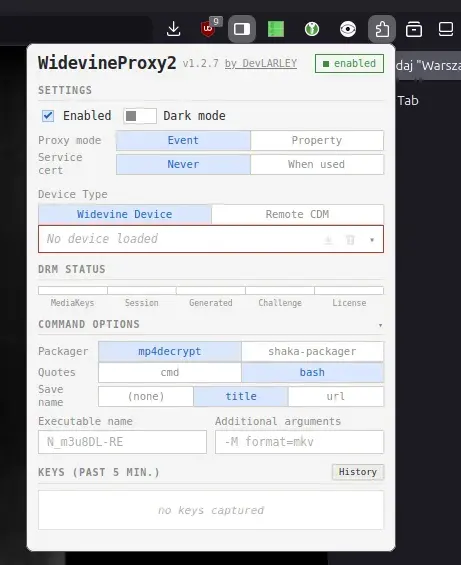
Click the dropdown under the “Widevine Device/Remote CDM” selector and pick “Choose File” option
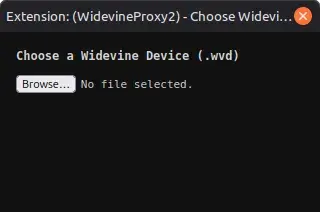
you will get a small window like this, select Browse and choose the .wvd file you have.
Setting up the “Command options” is optional, but is highly recommended.
Following the previous guide you will have mp4decrypt, so it can stay as is. For “Quotes”, select “cmd” if you are using Windows’s cmd.exe command line, or “bash” you are using sh-like shells (on Linux, macOS, or heck, even Windows through WSL, MSYS2, Cygwin, or Git Bash). Save name will determine the value of the --save-name parameter passed in, and in effect the name of the final file. I pick “title”, but “url” may work better for other sites. Also configure the executable name if you are running N_m3u8DL-RE in another way than just N_m3u8DL-RE, and if you are using extra arguments in your N_m3u8DL-RE command line, you can supply them there too.
Using WidevineProxy2
Make sure the extension is “Enabled” (top left in the Settings), and navigate to the video. If everything goes right, your CDM is not revoked by the site etc etc, you will see an error on the site itself
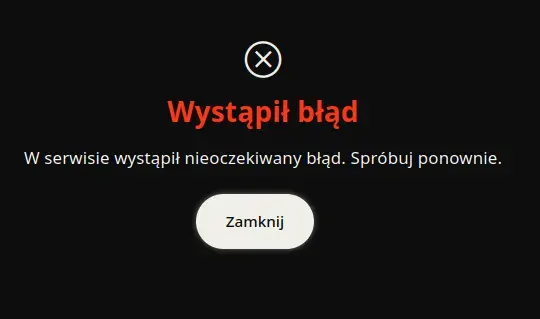
but it’s okay, navigate to the extension, and you will see the extracted key.
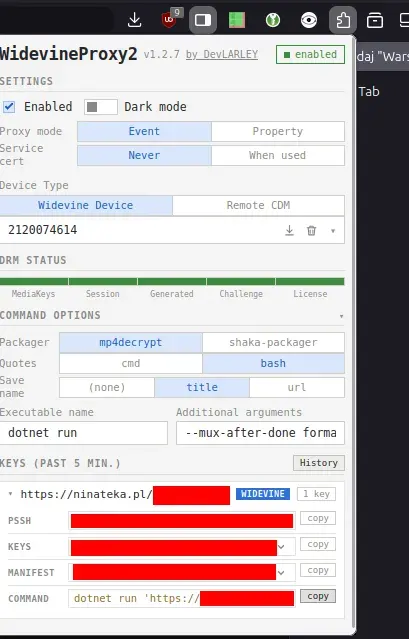
If you have set up the “Command Options” like described above, you can now simply press “copy” where “Command” is and run the exact command provided, in the command line.
If you want to watch the DRM video normally, through a browser, you can deselect “Enabled”